

Mobile Payments 101: Apple Pay, Google Pay, Tap-to-Pay and Security Basics

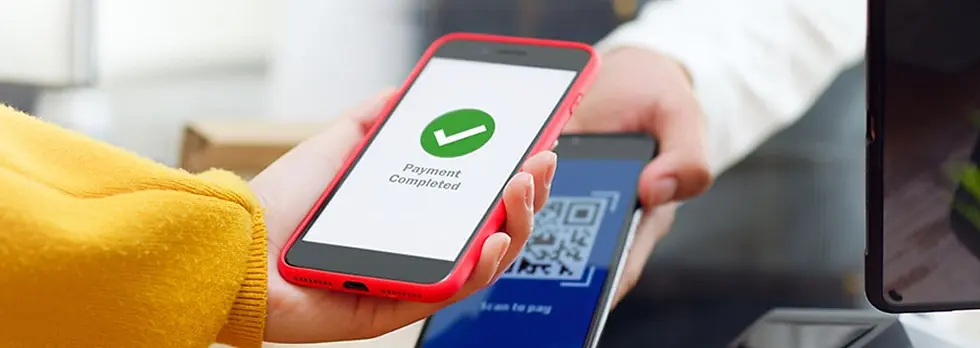
Customers use mobile payments every day, but many still ask the same questions: “Is Apple Pay safe?” “Why won’t tap-to-pay work?” or “Do I need internet for it to work?” If your staff can deliver mobile payments explained in plain language, they can build trust, answer security concerns, and solve common tap-to-pay issues quickly at the counter.
Mobile Payments Explained: What They Actually Are
Mobile payments let customers pay with their phone, smartwatch, or other supported device instead of swiping or inserting a physical card. The most common examples are Apple Pay, Google Pay, and other tap-to-pay wallet features built into smartphones.
Most in-store mobile payments use NFC (Near Field Communication), which lets the phone communicate with the payment terminal when it’s held close enough.
Dealer translation: It’s basically a secure digital version of tapping a card—but with extra layers of protection.
How Apple Pay, Google Pay, and Tap-to-Pay Work
When a customer adds a card to a mobile wallet, the phone usually does not store or send the actual card number to the merchant during payment. Instead, it uses security methods like:
Tokenization: A digital substitute for the real card number
Device authentication: Face ID, fingerprint, PIN, or passcode before payment
NFC communication: Short-range wireless connection between phone and terminal
Dealer script: “Your phone usually isn’t giving the store your real card number. It uses a secure token instead.”
Security Basics: Common Myths Customers Believe
Myth 1: “Mobile payments are less secure than a physical card”
In many cases, mobile payments are actually more secure because they use tokenization and require device authentication.
Myth 2: “Anyone can tap my phone and steal my card”
Not normally. The wallet usually requires Face ID, fingerprint, PIN, or the phone being unlocked in a secure way before payment can happen.
Myth 3: “The store gets my full card number”
Usually no. The merchant receives transaction data tied to the tokenized payment, not the raw card number in the same way as manual card entry.
Myth 4: “If my phone is lost, my money is gone”
Not automatically. A locked phone with biometric/passcode protection is a major barrier, and customers can often remotely lock or erase the device using account recovery tools.
Dealer tip: The biggest security risk is often a weak phone passcode—not the mobile wallet itself.
Do Mobile Payments Need Internet?
This is a common customer question. In many cases, tap-to-pay can still work without an active mobile data connection for in-store payments, because the secure wallet credentials are already stored on the device. However, internet may still be needed for:
Adding a new card
Verifying a card with the bank
Updating wallet settings
Some account-related or transaction history features
Dealer translation: Customers usually don’t need live internet just to tap and pay in-store—but they do need it for setup and account changes.
Why “Tap Doesn’t Work” Happens
When mobile payments fail, it’s usually one of a few common issues:
NFC is off: Some Android phones require NFC to be enabled manually.
No card set as default: The wallet is installed, but no payment card is ready.
Phone not unlocked/authenticated: Face ID, fingerprint, or PIN step wasn’t completed.
Wrong phone position: The NFC antenna location varies by device.
Case interference: Thick cases, metal plates, or magnetic accessories can interfere.
Terminal issue: The store’s payment terminal may not be reading tap correctly.
Bank/card restriction: The card may need re-verification or may not support the wallet.
Dealer Troubleshooting: Quick Fixes at the Counter
Confirm the wallet is set up correctly: Card added, verified, and selected as default if needed.
Check NFC settings: Especially on Android devices.
Have the customer unlock/authenticate first: Face ID, fingerprint, or PIN.
Try a different phone position: Some phones tap best near the top, others near the center.
Remove thick/metal accessories: Especially magnetic wallet attachments or metal plates.
Test another terminal if possible: Sometimes the issue is the reader, not the phone.
Dealer tip: If a customer says “tap never works,” ask what case or magnetic accessory they’re using before blaming the phone.
How to Recommend the Right Setup for Different Customers
Security-focused customers: Recommend strong passcodes + biometrics + remote device tracking.
Older customers/new users: Walk them through one wallet setup and one test payment in-store.
Customers with rugged or magnetic cases: Warn them that accessories can affect tap performance.
Customers who travel: Explain that mobile wallets can be convenient abroad, but card acceptance still depends on the merchant and region.
Need compatible accessories that won’t interfere with NFC or tap-to-pay? Browse our accessories directory.
The Bottom Line for Wireless Dealers
Mobile payments explained: Apple Pay, Google Pay, and tap-to-pay use NFC, tokenization, and phone authentication to make payments convenient and secure. Most customer concerns come down to myths, setup confusion, or simple issues like NFC settings and case interference. When your staff can explain that clearly, they build trust and solve problems fast.


.webp)

Comments